
How Often Should You Update WordPress? A Practical Guide for Businesses
Introduction
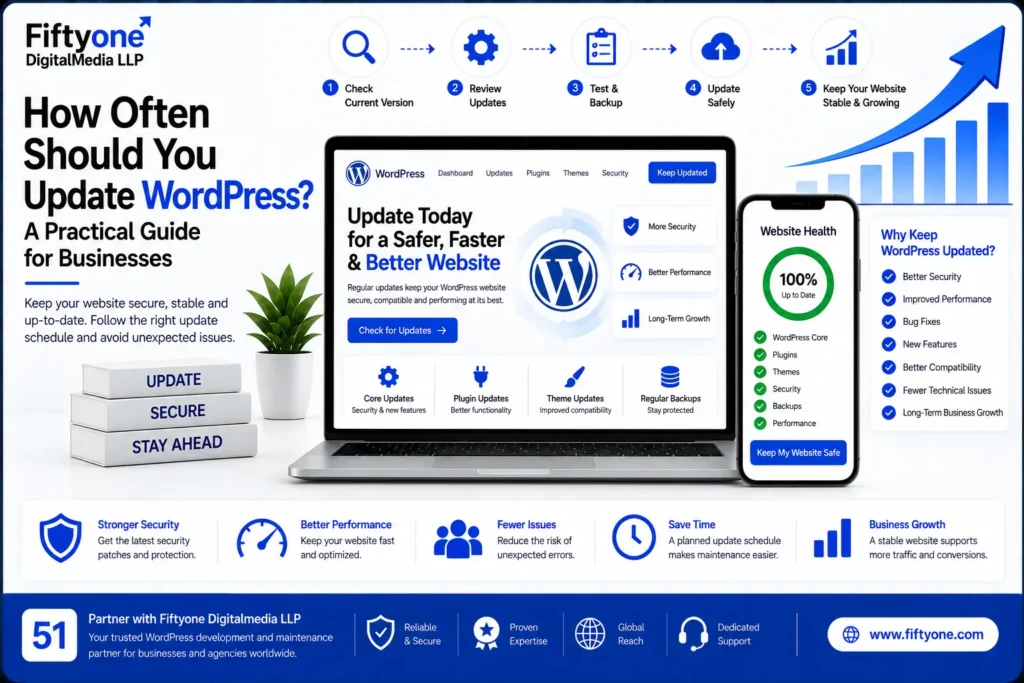
WordPress websites require regular updates to remain secure, stable, and compatible with modern web technologies. WordPress core, plugins, and themes are updated throughout the year to introduce new features, fix bugs, improve compatibility, and address security vulnerabilities.
However, updating everything without checking compatibility can also create problems. A plugin update may affect the website layout, a theme update may change design settings, or a new WordPress version may conflict with custom code.
For this reason, website owners should follow a planned update schedule instead of waiting until something stops working. The right frequency depends on the type of update, the website’s features, and how important the website is to the business.
How Often Should You Update WordPress Core?
WordPress core should generally be updated whenever a stable security or maintenance release becomes available. Security updates should not be postponed because they may address vulnerabilities that could affect the website.
Major WordPress releases require more attention. They may introduce new features, changes to the editor, performance improvements, or compatibility changes. Before installing a major release on a business website, review the release information and test the website where possible.
A practical approach is to:
- Install security updates as soon as reasonably possible.
- Review maintenance releases regularly.
- Test major releases on a staging website first.
- Check important website functions after updating.
- Keep a recent backup before making changes.
Websites that process payments, collect customer information, or manage user accounts should have a more controlled update process.
How Often Should You Update WordPress Plugins?
Plugins should be checked at least once a week, especially when they are responsible for security, forms, payments, SEO, backups, or website performance.
Not every plugin update needs to be installed immediately without testing. Review the update details and check whether the plugin is compatible with your WordPress version, theme, and other important plugins.
Security-related plugin updates should receive priority. Feature updates can be tested and scheduled according to the website’s maintenance plan.
For a business website, plugin management should include:
- Reviewing available updates weekly.
- Installing important security fixes promptly.
- Testing major plugin updates before publishing.
- Removing plugins that are no longer required.
- Checking whether plugins are actively maintained.
Keeping unused plugins installed can increase maintenance requirements and may create additional security risks.
How Often Should You Update WordPress Themes?
WordPress themes should also be reviewed weekly or whenever an update notification appears. Theme updates may include security fixes, compatibility improvements, accessibility changes, and design enhancements.
If you use a custom theme or have made direct changes to theme files, updating the theme without a proper development process may overwrite customizations.
A child theme or a controlled development workflow can help protect custom changes. Before updating a theme, check whether the website uses custom templates, custom CSS, theme-specific widgets, or modified functions.
After a theme update, review the homepage, header, footer, navigation, blog layout, forms, and responsive design.
Should You Update WordPress Every Day?
Most website owners do not need to manually update WordPress every day. A daily review may be suitable for websites with high traffic, active development, or strict security requirements, but it is not necessary for every small business website.
The important thing is to monitor updates consistently and prioritize them according to risk.
A weekly review is usually a practical starting point for many websites. Critical security updates should be handled sooner, while major changes should be tested before being applied to the live website.
Recommended WordPress Update Schedule
A planned schedule makes website maintenance easier and reduces the risk of missed updates.
Weekly
Check WordPress core, plugins, themes, security notifications, backups, and website errors. Review whether any important update requires immediate attention.
Monthly
Perform a more detailed maintenance review. Test forms, menus, contact buttons, checkout, search, mobile layouts, and important landing pages. Review unused plugins and check website performance.
Before Major Updates
Create a backup, test the update on a staging website, review compatibility information, and confirm that the hosting environment meets the requirements.
After Every Update
Clear the website cache and test important functions. Check the homepage, navigation, forms, images, blog posts, product pages, and responsive layouts.
Why WordPress Updates Sometimes Break Websites
Updates can create problems when the website contains outdated plugins, custom code, incompatible themes, or old PHP versions. Conflicts may also occur when multiple plugins modify the same WordPress functionality.
Common update-related problems include:
- Broken layouts
- Missing widgets
- Form errors
- Menu problems
- Checkout issues
- White screen errors
- Plugin conflicts
- Changes to custom CSS
- Slow loading after an update
This does not mean updates should be avoided. It means updates should be handled through backups, compatibility checks, and proper testing.
How to Update WordPress Safely
Create a Backup First
A complete backup should include the WordPress files and database. Store the backup in a location that is separate from the website server when possible.
A backup gives you a recovery option if an update causes a serious problem. However, do not assume that a backup is usable until you know how to restore it.
Use a Staging Website
A staging website is a private copy of your live website where updates can be tested before visitors see the changes.
Staging is especially useful for WooCommerce stores, membership websites, websites with custom development, and sites that use several connected plugins.
Test the main user journeys, not just whether the homepage opens.
Update One Group at a Time
Updating every plugin, theme, and core file at the same time can make it difficult to identify the cause of a problem.
A safer process is to update related components in a controlled order and test the website after each major change.
Check the Website After Updating
After an update, review the website on desktop and mobile. Check forms, buttons, navigation, product pages, payment features, and important calls to action.
If the website uses custom CSS or page builder templates, confirm that spacing, colors, typography, and responsive layouts remain correct.
Automatic Updates: Should You Enable Them?
Automatic updates can reduce the risk of missing important maintenance releases. They may be useful for small websites with a simple setup and reliable backups.
However, automatic updates require more caution on complex websites. A plugin conflict or unexpected change may occur without a manual review.
Automatic updates may be less suitable for:
- WooCommerce stores
- Membership websites
- Websites with custom code
- Websites using outdated themes
- Websites with many connected plugins
- Websites that require strict change control
If automatic updates are enabled, use monitoring, backups, and regular testing to identify problems quickly.
How Updates Affect Website Security
Outdated WordPress software can expose websites to known security weaknesses. Attackers often target outdated plugins, themes, and core files because vulnerabilities may be publicly documented.
Updates are only one part of website security. Strong passwords, limited administrator access, secure hosting, backups, malware monitoring, and login protection are also important.
Website owners should avoid installing plugins from unreliable sources. A plugin that is abandoned or no longer maintained may create long-term security and compatibility concerns.
How Updates Affect Website Performance
Updates can improve performance by fixing inefficient code, improving compatibility, or reducing resource usage. However, some updates may also introduce additional features that affect loading time.
After a major update, test page speed and review whether new scripts, styles, or requests have been added. If the website becomes slower, check the update history and identify which component changed.
You can also review our Why Is My WordPress Website Slow? guide for common performance problems related to hosting, images, plugins, caching, and JavaScript.
WordPress Updates for International Business Websites
International websites should be maintained carefully because visitors may come from different countries, devices, and time zones. An update that breaks a form, payment feature, language switcher, or location-specific page can affect users in multiple markets.
Before updating an international website, test:
- Contact and enquiry forms
- Currency and payment settings
- Language or regional navigation
- Mobile layouts
- Website speed in different regions
- SEO metadata and indexing settings
- Important landing pages
For websites targeting the USA, UK, Canada, Australia, or Europe, maintenance should focus on keeping the website accessible and reliable for all major visitor groups.
Why Choose Fiftyone Digitalmedia LLP?
Fiftyone Digitalmedia LLP provides WordPress development, maintenance, and performance support for businesses and agencies.
A structured maintenance process can include update monitoring, backups, staging tests, plugin reviews, security checks, performance testing, and troubleshooting after updates.
The team can also review custom WordPress websites, page builder layouts, WooCommerce functionality, and responsive design to reduce the risk of unexpected changes.
For businesses that depend on their website for leads or sales, regular maintenance helps protect website reliability and supports long-term growth.
Frequently Asked Questions
How often should WordPress plugins be updated?
Check plugins weekly and prioritize security updates. Major feature updates should be tested before being applied to a live website.
Is it safe to update WordPress automatically?
Automatic updates can be useful for simple websites, but complex websites should use backups, staging, and compatibility testing before enabling them.
What should I do before updating WordPress?
Create a complete backup, review compatibility information, test the update on staging, and confirm that important website functions work correctly.
What happens if a WordPress update breaks my website?
Identify the update that caused the issue, check plugin and theme compatibility, review error logs, and restore a backup if necessary. A developer may be required for custom conflicts.
Conclusion
WordPress should be monitored regularly, with security updates handled promptly and major updates tested before installation. Checking plugins and themes weekly is a practical routine for many business websites.
The safest update process includes backups, staging tests, compatibility checks, and post-update reviews. Regular maintenance helps prevent security issues, broken layouts, performance problems, and unexpected downtime.
A consistent WordPress update schedule keeps your website secure, stable, and ready to support visitors and business goals.
CTA
Need help managing WordPress updates safely? Contact Fiftyone Digitalmedia LLP for WordPress maintenance, security checks, update management, and performance support.
