
Why Is My WordPress Website Slow? Common Causes and Solutions
Introduction
A slow WordPress website can create problems for visitors, businesses, and search performance. When a page takes too long to load, users may leave before reading the content, submitting a form, or completing a purchase. This can reduce engagement and affect the overall performance of a business website.
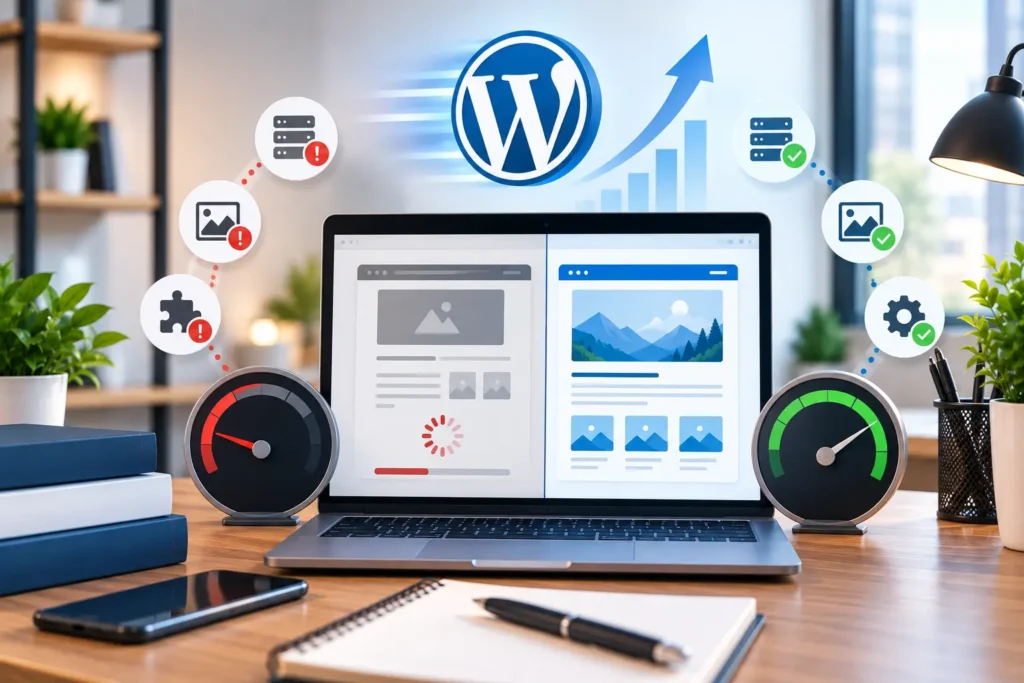
WordPress websites can become slow for different reasons. Large images, poor hosting, excessive plugins, heavy page builders, unoptimized code, database issues, and third-party scripts can all affect loading speed.
The important point is that every slow website does not have the same problem. Some websites need better hosting, while others need image optimization, plugin cleanup, caching, or technical improvements. Identifying the actual cause is the first step toward improving performance.
How to Check WordPress Website Speed
Before making changes, test your website with a performance testing tool. This helps you understand which part of the website is creating the delay.
You can use tools such as Google PageSpeed Insights, GTmetrix, WebPageTest, or Chrome Lighthouse. Test both desktop and mobile because the results can be very different between devices.
Important performance metrics include:
- Largest Contentful Paint
- First Contentful Paint
- Cumulative Layout Shift
- Total Blocking Time
- Time to First Byte
Do not focus only on the final performance score. A website may receive a good score but still feel slow because of delayed server response, large images, or scripts that block important content.
Poor Hosting Can Make WordPress Slow
Web hosting has a direct effect on website performance. If your website is placed on an overcrowded server, the server may take longer to respond to requests. This problem can become more visible when your website receives more visitors or uses resource-heavy features.
Shared hosting may be suitable for small websites, but it can create limitations for larger business websites, WooCommerce stores, membership websites, and websites with complex integrations.
When reviewing hosting, consider the available server resources, PHP version, storage technology, server location, uptime, and support quality. A reliable hosting environment should be able to handle your website’s traffic and technical requirements.
However, changing hosting is not always the complete solution. If the website has large files, too many plugins, or inefficient code, it may remain slow even after moving to a better server.
Large Images Increase Loading Time
Images are one of the most common reasons for slow WordPress websites. High-resolution images uploaded directly from cameras, design software, or stock libraries may be much larger than necessary.
A website does not always need a very large image file when the image is displayed inside a small content area. Large files take longer to download and can affect mobile visitors more severely.
To improve image performance, resize images according to their actual display size and compress them before uploading. Modern image formats such as WebP and AVIF can also reduce file size while maintaining suitable visual quality.
The main hero image requires special attention because it is often visible immediately when the page opens. If the hero image is too large or loaded inefficiently, it may delay the main content from appearing.
Images below the first screen can usually be lazy-loaded, but the main visible image should not be delayed unnecessarily.
Too Many Plugins Can Affect Performance
Plugins add useful features to WordPress, but some plugins load additional CSS, JavaScript, database queries, and background processes. The effect depends on how the plugin is developed and what it does on the website.
A website with many lightweight plugins may perform better than a website with only a few poorly optimized plugins. Therefore, the total number of plugins is not the only factor.
Review your installed plugins and remove tools that are inactive, duplicated, outdated, or no longer required. Also check whether multiple plugins are performing the same task, such as caching, SEO, security, forms, or image optimization.
Before deactivating or deleting a plugin, create a backup and check whether another part of the website depends on it.
Heavy Themes and Page Builders
Themes and page builders make it easier to create attractive websites, but complex layouts can increase page size. Sliders, animations, popups, carousels, counters, background videos, and multiple widgets may add extra resources.
A page with too many visual effects often requires more CSS and JavaScript. This can increase the amount of work a browser must complete before the page becomes interactive.
The solution is not necessarily to remove the page builder. Instead, use it more efficiently. Reduce unnecessary animations, avoid duplicate sections, remove unused widgets, and keep the layout simple where possible.
A clean structure usually improves both website speed and user experience.
Unoptimized JavaScript and CSS
JavaScript is used for menus, forms, popups, tracking tools, sliders, and other interactive features. When too many scripts are loaded together, they may delay page rendering or block the browser from displaying important content.
CSS can also become unnecessarily large when a website contains unused styles, repeated design rules, or resources from multiple plugins and themes.
Common improvements include:
- Minifying CSS and JavaScript files
- Removing unused scripts and styles
- Loading scripts only on required pages
- Deferring non-critical JavaScript
- Reducing unnecessary animations
- Limiting third-party tracking scripts
These changes should be implemented carefully. Delaying the wrong script can break menus, forms, checkout pages, or other important website functions.
Lack of Caching
Caching helps WordPress serve stored versions of pages instead of generating every page from the beginning for every visitor. Without proper caching, the server may repeatedly process PHP files and database queries.
Page caching, browser caching, object caching, and CDN caching can reduce server workload and improve loading speed.
After enabling or changing caching settings, clear the cache and test the website again. Cached CSS and JavaScript files can sometimes cause design changes not to appear immediately.
Caching is especially useful for websites with repeated visitors and content that does not change on every request. Dynamic pages such as carts, account pages, and checkout pages may require different caching rules.
Database and Background Process Issues
WordPress stores posts, pages, settings, plugin data, user information, and other records in its database. Over time, unnecessary revisions, spam comments, expired transients, and unused plugin data may increase database size.
A large database does not automatically mean that a website is slow. The bigger issue is often inefficient database queries or plugins that request too much information on every page load.
Background tasks can also use server resources. Backups, security scans, product imports, scheduled emails, and WooCommerce processes may create additional load.
If your website becomes slow at specific times, check whether scheduled tasks or automated processes are running during those periods.
External Scripts Can Delay Page Loading
Third-party services are useful for analytics, chat, advertising, reviews, social media feeds, and marketing automation. However, each external service can create additional browser requests.
A page that loads several external tools may need to connect to multiple servers before becoming fully interactive. If one external service is slow, it can affect the user experience.
Review every third-party script and ask whether it supports a clear business purpose. Remove unnecessary tools and load non-critical services after the main content when possible.
You should also avoid embedding large videos or social media feeds directly into important landing pages unless they are necessary for the page’s purpose.
Mobile Performance Needs Extra Attention
A website may appear fast on a desktop computer but load slowly on mobile devices. Mobile users may have slower internet connections, smaller processing resources, and limited battery power.
For better mobile performance, reduce image sizes, simplify navigation, avoid large popups, limit animations, and keep important content near the top of the page.
Buttons and forms should also be easy to use on smaller screens. A technically fast website can still feel slow if users need to wait for multiple popups or interactive elements before accessing the main content.
Test the website on real mobile devices whenever possible. Browser resizing alone may not reveal every mobile performance issue.
Practical Ways to Improve WordPress Speed
A useful optimization process should begin with the biggest problems instead of making random changes. Start with the homepage and other important pages such as service pages, product pages, landing pages, and checkout.
A practical improvement process includes:
- Test the website on desktop and mobile.
- Review hosting and server response time.
- Compress and resize large images.
- Remove unnecessary plugins.
- Enable suitable caching.
- Optimize CSS and JavaScript.
- Review third-party scripts.
- Check database and background tasks.
- Test forms, menus, and checkout after changes.
- Monitor performance regularly.
Website speed should be reviewed after major design changes, plugin updates, migrations, or hosting changes.
WordPress Maintenance Supports Long-Term Speed
Website speed can decline over time when new plugins, images, pages, tracking tools, and design elements are added. Regular maintenance helps prevent these issues from becoming serious.
A maintenance process should include backups, updates, security checks, broken-link reviews, database cleanup, and performance testing. You can use our WordPress Website Maintenance Checklist to review the important tasks required to keep a WordPress website stable and optimized.
Regular maintenance is particularly important for business websites that depend on lead generation, online sales, or international visitors.
When Should You Hire a WordPress Performance Expert?
Basic improvements such as image compression and plugin cleanup can often be completed internally. More complex issues may require technical investigation.
Professional support may be useful when the website remains slow after basic optimization, the server response time is high, or certain pages load slowly because of custom code and integrations.
You may also need expert help if performance improvements break your website’s design or functionality. A professional WordPress development team can review the theme, plugins, hosting, database, and custom code together.
Before selecting a service provider, read our guide on How to Choose a WordPress Development Company to understand the important factors to review, including technical experience, communication, maintenance support, and project requirements.
Why Choose Fiftyone Digitalmedia LLP?
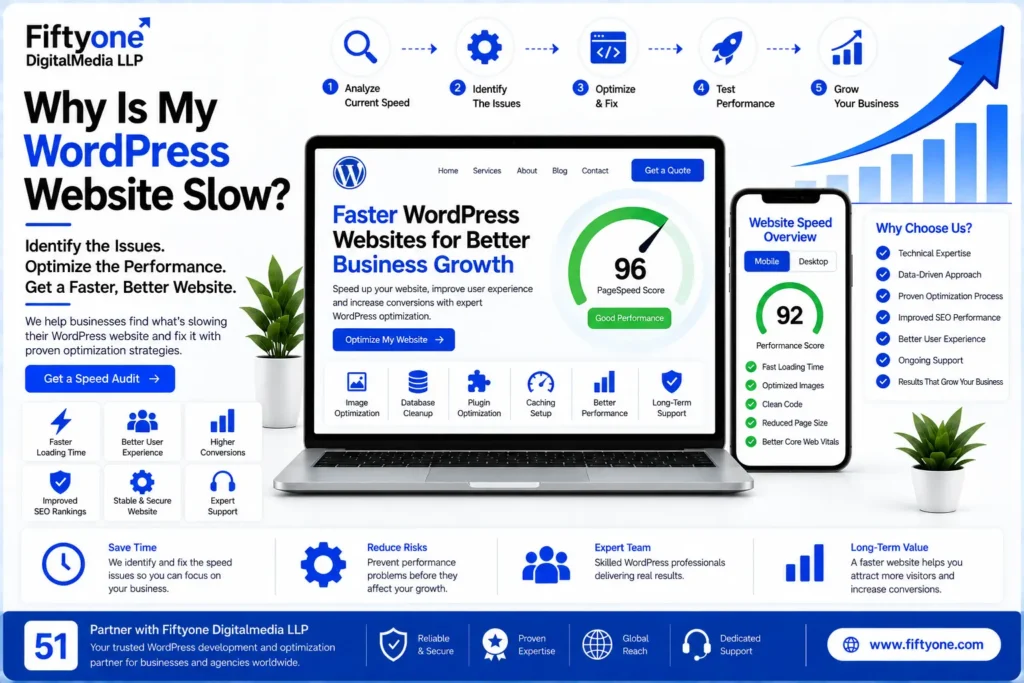
Fiftyone Digitalmedia LLP helps businesses and agencies improve WordPress website performance through technical audits, optimization, and ongoing support.
The process may include image optimization, plugin review, caching configuration, mobile performance improvements, code optimization, and testing after implementation.
For international businesses, performance should also be reviewed from the perspective of visitors in different countries. Hosting configuration, CDN setup, website structure, and resource delivery can all affect the experience of users in the USA, UK, Canada, Australia, and Europe.
The objective is not only to improve a performance score. A successful optimization process should help the website load faster, remain stable, support conversions, and provide a better experience across devices.
Frequently Asked Questions
Why is my WordPress website slow even with good hosting?
Good hosting cannot fix every performance issue. Large images, heavy plugins, page builders, third-party scripts, and unoptimized code can still make a website slow.
Can too many plugins slow down WordPress?
Yes. Plugins may add CSS, JavaScript, database queries, and background processes. The impact depends on the quality and function of each plugin.
Does a caching plugin improve WordPress speed?
A caching plugin can reduce repeated server processing and improve loading times. It works best when combined with image optimization, suitable hosting, and plugin cleanup.
How often should WordPress website speed be tested?
Test your website after major updates, redesigns, migrations, plugin changes, or hosting changes. A monthly performance review is also useful for active business websites.
Conclusion
A slow WordPress website can be caused by hosting, large images, excessive plugins, heavy page builders, unoptimized scripts, database issues, or third-party services.
The best approach is to test the website, identify the biggest bottlenecks, and fix them in the correct order. Regular maintenance, mobile testing, and careful plugin management can help maintain performance over time.
With the right optimization process, your WordPress website can load more efficiently, provide a better user experience, and support long-term business growth.
CTA
Is your WordPress website loading slowly? Contact Fiftyone Digitalmedia LLP for a professional WordPress speed audit and practical performance optimization support.
