How to Fix Core Web Vitals Issues

Introduction
A website can look professional and still provide a frustrating experience when pages load slowly, buttons respond late, or content shifts unexpectedly. These problems can affect how visitors interact with a website, particularly on mobile devices and slower connections.
Core Web Vitals help businesses identify three important aspects of website performance: loading speed, responsiveness, and visual stability. They are also part of Google’s broader page experience considerations, although improving these metrics alone does not guarantee higher rankings.
If you want to understand how to fix Core Web Vitals issues, start by identifying which metric is underperforming and which pages are affected. Compressing every image, installing another cache plugin, or changing the entire theme without investigating the cause can waste time and introduce new problems.
This guide explains how to diagnose and fix LCP, INP, and CLS issues, prioritize improvements, and monitor the results.
What Are Core Web Vitals?
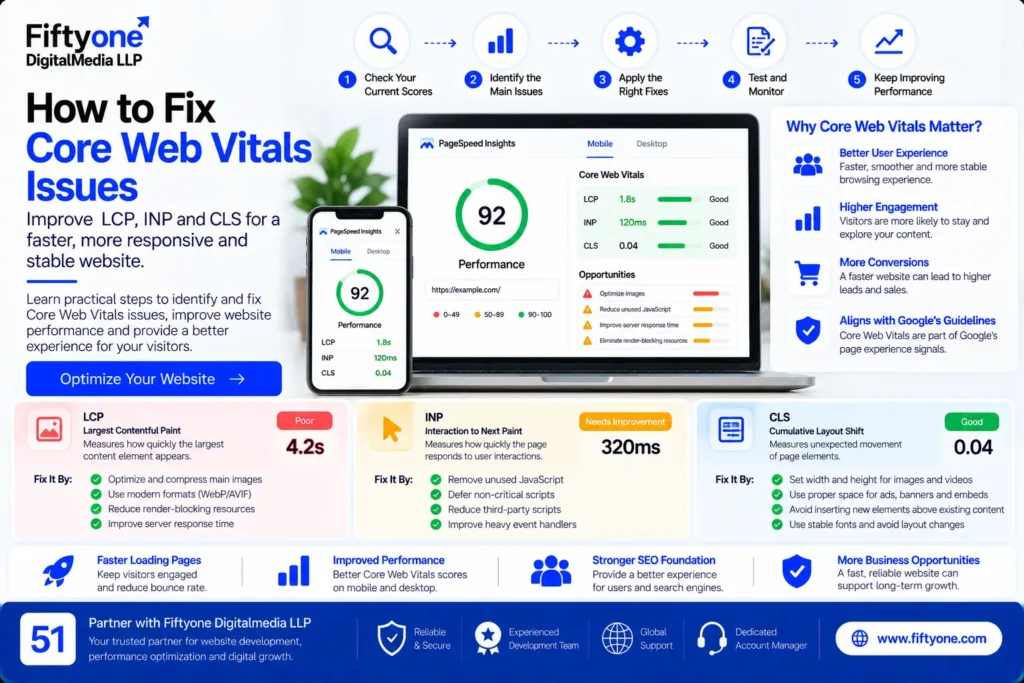
Core Web Vitals are Google’s metrics for evaluating important aspects of the real-world page experience. Each metric measures a different problem, so the appropriate fix depends on the result.
- Largest Contentful Paint (LCP): Measures how quickly the largest visible content element appears.
- Interaction to Next Paint (INP): Measures how responsive a page is when visitors interact with it.
- Cumulative Layout Shift (CLS): Measures unexpected movement of page elements during a visit.
Google’s recommended thresholds are:
| Metric | Good | Needs improvement | Poor |
|---|---|---|---|
| LCP | 2.5 seconds or less | Over 2.5 to 4 seconds | Over 4 seconds |
| INP | 200 ms or less | Over 200 to 500 ms | Over 500 ms |
| CLS | 0.1 or less | Over 0.1 to 0.25 | Over 0.25 |
These thresholds are evaluated at the 75th percentile of visits, with mobile and desktop assessed separately. A page needs to meet the good threshold for all three metrics to pass the Core Web Vitals assessment when sufficient data is available.
How to Check Core Web Vitals Issues
Before editing a website, identify the actual performance problem. A low Lighthouse performance score and a failing real-user Core Web Vitals assessment are not necessarily the same thing.
Use Google Search Console
Open the Core Web Vitals report in Google Search Console. Review mobile and desktop separately, and identify URL groups marked Poor or Need improvement.
Look for patterns. If many product pages share the same problem, the cause may be in the common product template. If only one landing page is affected, the issue may be specific to that page’s images, scripts, or layout.
The report uses real-world Chrome user data and groups similar URLs. It does not list every indexed page, and a site with insufficient data may not show a report for some URLs.
Test individual pages
Use Google PageSpeed Insights to test important URLs, including the homepage, service pages, blog posts, and product pages where applicable.
Review both field data and laboratory diagnostics when available. Field data describes real visitors’ experiences, while lab tests help developers investigate possible causes.
Prioritize pages that attract important organic traffic or generate leads and sales. Fixing a problem on a shared template may improve multiple pages at once.
1. How to Fix Poor LCP Scores
Largest Contentful Paint measures how quickly the largest content element in the visible part of the page renders. This is often a hero image, product image, banner, or large text block.
A poor LCP score can make a website appear slow even when other elements load quickly.
Optimize the main image
Check which element PageSpeed Insights identifies as the LCP element. If it is an image, ensure the file is appropriately sized and compressed.
Use modern image formats where supported, and avoid serving an unnecessarily large desktop image to a small mobile screen. However, do not reduce image quality so much that products or important visual content become difficult to understand.
The main image visible immediately on page load should generally not be lazy-loaded. Lazy loading is more appropriate for images farther down the page.
Reduce render-blocking resources
CSS and JavaScript can delay the browser from displaying important content. Review the PageSpeed Insights diagnostics for render-blocking resources and unnecessary scripts.
Remove unused code where safe, defer non-critical JavaScript, and prioritize the CSS needed to display the initial viewport. Test any optimization carefully because aggressive CSS or JavaScript changes can break menus, forms, and responsive layouts.
Improve server response time
If the server takes too long to return the initial HTML, the browser cannot render the page promptly. Review hosting performance, caching, database queries, and backend processing.
For WordPress websites, check whether the theme, plugins, or page builder are creating unnecessary work. For ecommerce sites, investigate dynamic requests and integrations that may slow down important pages.
Helpful reference: Google’s LCP optimization guide explains how to diagnose and improve this metric.
2. How to Improve INP Scores
Interaction to Next Paint measures how quickly a page responds to user interactions such as clicks, taps, and keyboard input. A page may appear to load quickly but still feel unresponsive when visitors open a menu, filter products, or submit a form.
Poor INP is often associated with excessive JavaScript work on the browser’s main thread.
Identify long-running JavaScript tasks
Use browser developer tools and PageSpeed Insights diagnostics to investigate long tasks and scripts that consume significant processing time.
Common sources include complex page-builder elements, sliders, chat widgets, tracking scripts, product filters, and third-party integrations.
Remove unnecessary scripts and reduce work performed during user interactions. If a feature is not important to the customer journey, consider simplifying or removing it.
Break up heavy interactions
When JavaScript performs too much work in one task, the browser may struggle to respond promptly to user input.
Developers can improve responsiveness by breaking long tasks into smaller units, avoiding unnecessary DOM updates, and delaying non-essential work until after the main interaction.
For example, a product filter should respond promptly when a visitor changes a selection. If the filter triggers multiple expensive calculations or repeated page updates, optimizing that interaction may improve responsiveness.
Review third-party scripts
Marketing pixels, live-chat tools, analytics scripts, and embedded widgets can consume processing time. Audit which tools are essential and investigate whether they can be configured to perform less work.
Do not disable payment, analytics, or consent-related functionality without understanding its purpose. The objective is to reduce unnecessary work while preserving the website’s required features.
Read Google’s INP optimization guide for detailed technical guidance.
3. How to Fix CLS Issues
Cumulative Layout Shift measures unexpected movement of visible content. It can be frustrating when a visitor is about to click a button and the page moves, causing them to select the wrong element.
Common causes include images without reserved dimensions, advertisements that appear late, dynamically inserted banners, and fonts that change the layout after loading.
Set image and video dimensions
Reserve space for images and videos by specifying their dimensions or using an appropriate aspect ratio. This allows the browser to allocate space before the media finishes loading.
Check product grids, blog thumbnails, hero images, and embedded videos. Images that load without reserved space can push surrounding content down unexpectedly.
Reserve space for dynamic content
If a cookie banner, promotional message, or recommendation widget appears after the page loads, ensure that it does not unexpectedly move important content.
Where appropriate, use overlays that do not disrupt the layout or reserve enough space for the component before it appears.
Optimize font loading
Web fonts can change text dimensions and cause visible movement. Use appropriate font formats, avoid loading unnecessary font weights, and test fallback fonts to reduce layout differences.
For pages with complex headings or responsive text, check whether content wraps differently after fonts load. Adjust font choices or layout constraints where necessary.
Google’s CLS optimization guide provides more detail on diagnosing layout shifts.
4. Fix Core Web Vitals on WordPress Websites
WordPress performance depends on the theme, plugins, hosting, media, and custom code working together. Installing multiple optimization plugins without understanding their effects can create duplicate processing or compatibility problems.
Start by identifying the affected template and metric. If several pages using the same template fail, inspect the shared theme or page-builder components first.
Review these areas:
- Themes and page builders: Remove unnecessary sections, animations, and scripts.
- Plugins: Investigate unused extensions and those loading resources across the whole site.
- Images: Serve appropriately sized media and reserve layout space.
- Caching: Configure page caching for suitable pages and exclude dynamic areas where necessary.
- Fonts and CSS: Reduce unnecessary font variants and render-blocking resources.
- Hosting: Investigate slow server responses and resource limitations.
- Custom code: Test changes carefully, particularly if the website relies on custom functionality.
For ecommerce websites, checkout, cart, and account pages require special care because they often contain dynamic, user-specific information. Do not apply public-page caching rules indiscriminately to these areas.
Businesses that need broader website support can explore the 51Digitalmedia blog archive for related development and maintenance resources.
5. Fix Core Web Vitals on Shopify Websites
Shopify provides managed infrastructure, but themes, apps, custom Liquid code, and third-party scripts can still affect storefront performance.
Begin with the page templates that matter most to the shopping journey: the homepage, collection pages, and product pages.
Review apps that add reviews, chat, upselling, tracking, or other storefront features. Investigate whether their scripts are necessary on every page and whether redundant tools can be removed.
Optimize product images and videos, reduce unnecessary animations, and simplify sections that add little value. Ensure the primary product or hero image is not delayed unnecessarily.
For custom themes, have a developer inspect expensive scripts and Liquid components before making structural changes. After every significant optimization, test product variants, cart updates, filters, navigation, and checkout.
A faster storefront should still support the features customers need to make a purchase.
6. Why Core Web Vitals May Not Improve Immediately
After implementing fixes, you may see a better PageSpeed Insights lab score while Search Console continues to show Poor or Need improvement.
This does not automatically mean the fix failed. Lab data comes from a simulated test, while field data reflects actual visitor experiences over time. The two can differ because of devices, networks, locations, and user interactions.
Search Console’s Core Web Vitals report is based on real-user data collected over a rolling period. Changes may therefore take time to appear in the report.
To evaluate the results properly:
- Retest the affected URLs after making changes.
- Compare the same metric under similar test conditions.
- Check whether the fix improved the intended element or interaction.
- Monitor real-user data as it becomes available.
- Use Search Console’s validation workflow for issues that have been addressed.
Do not repeatedly change the website just because the report has not updated immediately. Confirm the technical fix first, then allow field data to reflect the change.
Core Web Vitals Optimization Checklist
Use this checklist to organize a performance audit:
- Review the Core Web Vitals report for mobile and desktop.
- Identify which URL groups have Poor or Need improvement status.
- Test representative URLs in PageSpeed Insights.
- Identify the LCP element and optimize its delivery.
- Investigate long JavaScript tasks affecting INP.
- Reserve space for images, videos, and dynamic components to reduce CLS.
- Review plugins, themes, apps, and third-party scripts.
- Check server response time and caching configuration.
- Retest important user journeys after implementing fixes.
- Monitor field data and validate issues through Search Console.
Prioritize Poor issues that affect important URLs or many pages. Improvements to shared templates can often have a broader impact than isolated changes to low-priority pages.
How Fiftyone Digitalmedia LLP Can Help
Fiftyone Digitalmedia LLP supports businesses and agencies with website development and technical services. Core Web Vitals improvement may involve auditing page templates, reviewing JavaScript and CSS, optimizing media, investigating server response time, and resolving theme or plugin performance problems.
The appropriate work depends on the website’s platform and the metric that is underperforming. A slow hero image requires a different fix from a page that responds slowly to clicks or shifts as fonts load.
A structured audit should identify the problem, explain the proposed changes, and test whether those changes improve the intended user experience. It should also ensure that forms, navigation, ecommerce functionality, and other important features continue to work correctly.
For businesses targeting international customers, performance should be assessed on mobile and desktop and monitored over time rather than judged by one test score.
Frequently Asked Questions
What causes Core Web Vitals issues?
Common causes include slow server responses, oversized images, render-blocking CSS, heavy JavaScript, third-party scripts, images without reserved dimensions, and dynamically inserted content. The exact cause depends on which metric is failing.
Do Core Web Vitals affect Google rankings?
Core Web Vitals are part of Google’s broader page experience considerations, but they are not a guarantee of ranking improvements. Relevant, useful content and other ranking factors remain important.
How long does it take to fix Core Web Vitals?
The time required depends on the problem. Compressing an oversized image may be straightforward, while diagnosing a complex JavaScript issue or server bottleneck may require deeper technical work. Search Console field data can also take time to reflect improvements.
Can a website pass PageSpeed Insights but fail Core Web Vitals?
Yes. Lab tests and real-user field data measure performance differently. A page can perform well in one simulated test but still provide a poor experience for a significant portion of actual visitors.
Conclusion
Fixing Core Web Vitals issues begins with understanding whether the problem involves loading performance, responsiveness, or visual stability. LCP improvements often require attention to the main content and server response, INP requires reducing unnecessary processing during interactions, and CLS requires preventing unexpected layout movement.
Use Search Console to identify affected URL groups, PageSpeed Insights to investigate individual pages, and targeted technical fixes to address the actual causes. Test the complete user journey after every significant change and monitor real-user performance over time.
A faster, more stable website can make it easier for visitors to read content, navigate services, and complete purchases. For businesses investing in organic search, the goal should be a reliable user experience supported by useful content and sound technical SEO—not simply a perfect score in a testing tool.
Need help improving your website’s performance? Contact Fiftyone Digitalmedia LLP to discuss a technical audit and a practical plan for resolving Core Web Vitals issues.