WordPress Database Optimization

Introduction
A WordPress website stores much more than published pages and blog posts. Its database can contain post revisions, drafts, comments, plugin settings, scheduled tasks, user information, and other records required to operate the website.
As a website grows, unnecessary records, inefficient database queries, and poorly configured plugins can contribute to performance problems. Administrators may notice slow page loading, delayed dashboard operations, or long-running queries, particularly on websites with large content libraries or complex ecommerce functionality.
WordPress database optimization helps keep this data organized and improves how efficiently the website accesses it. However, database size alone does not determine website speed. A large database can perform well when queries and indexes are appropriate, while a smaller database can still suffer from inefficient queries or limited server resources.
This guide explains how WordPress database optimization works, which records may be safe to clean, how to reduce database-related bottlenecks, and how to protect your website while making changes.
What Is WordPress Database Optimization?
WordPress database optimization involves improving how a website stores, retrieves, and manages information in its database.
A standard WordPress installation commonly uses MySQL or a compatible database system. Content, settings, metadata, comments, and other information are stored in database tables that WordPress and its plugins access when pages are requested.
Optimization can involve several different activities:
- Removing unnecessary records that are no longer needed.
- Identifying inefficient database queries.
- Reviewing autoloaded options that are loaded on many requests.
- Checking table indexes and database configuration.
- Improving plugin and theme behavior that generates excessive queries.
- Monitoring database response time and resource usage.
These activities solve different problems. Cleaning old revisions may reduce database size, but it will not necessarily fix a slow query caused by a poorly written plugin. A useful optimization process begins with diagnosis rather than deleting as much data as possible.
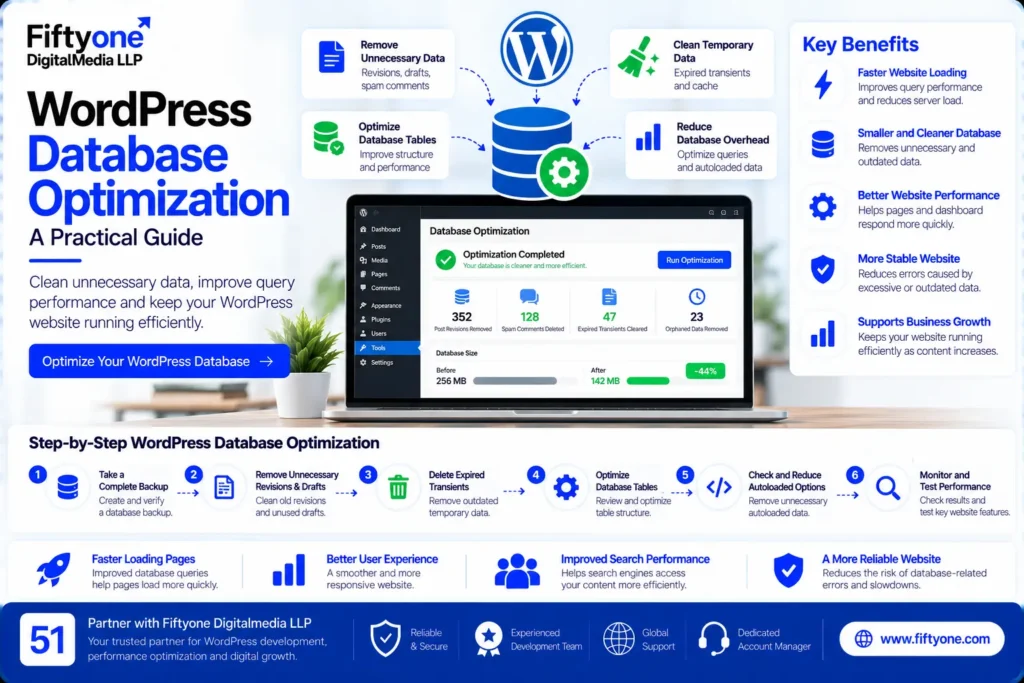
1. Back Up Your Database Before Making Changes
Database cleanup can permanently remove content, settings, or information required by plugins. Before optimizing a production website, create a complete database backup and confirm that it can be restored.
If the website includes WooCommerce, membership features, bookings, or customer accounts, consider how the backup process handles new orders and user activity. Restoring an old database backup may overwrite newer transactions or records.
A safer workflow includes:
- Create a database backup and, where appropriate, a complete website backup.
- Store the backup separately from the live website.
- Verify that the backup is usable.
- Test potentially destructive changes on a staging copy.
- Confirm that the website works correctly after cleanup.
For business-critical websites, establish a rollback plan before modifying database tables or plugin-generated records.
2. Remove Unnecessary Post Revisions and Drafts
WordPress can retain earlier versions of posts and pages. These revisions are useful when recovering previous content, but websites with extensive editing histories may accumulate many records.
Other potentially unnecessary records include expired temporary content and abandoned drafts. However, a draft may still contain valuable work, so it should not be deleted simply because it is unpublished.
How to manage revisions
Review your content and determine whether old revisions need to be retained. If cleanup is appropriate, use a reputable maintenance tool or a carefully tested database operation.
You can also limit the number of future revisions in WordPress by configuring WP_POST_REVISIONS in wp-config.php. For example:
define( 'WP_POST_REVISIONS', 5 );This setting limits the number of stored revisions per post to five. It does not automatically delete existing revisions, and it should be added only after checking the current configuration to avoid defining the constant twice.
Do not disable revisions blindly. They provide a recovery mechanism when content is accidentally changed or deleted.
3. Clean Up Expired Transients and Temporary Data
WordPress and its plugins may store temporary values known as transients. These can support caching, temporary calculations, API responses, and other operations.
Expired transient records may sometimes remain in the database, depending on how they are stored and managed. Cleaning unnecessary temporary data can help keep database housekeeping under control.
However, do not delete all transients indiscriminately. Some plugins use temporary values to avoid expensive calculations or external requests. Removing valid cached data may increase server workload until it is regenerated.
Use a compatible maintenance tool or inspect the relevant records before cleanup. After making changes, test important website features such as search, product filters, login, and checkout.
4. Review Autoloaded Options
WordPress stores many configuration values in the options table. Some options are marked for automatic loading, meaning WordPress retrieves them during many requests.
A large amount of unnecessary autoloaded data can increase the work required to initialize WordPress, especially when the data is loaded on nearly every page request.
How to investigate autoloaded data
Use database diagnostics or a trusted performance tool to inspect autoloaded options and identify unusually large entries.
Look for options belonging to:
- Plugins that have been removed.
- Old theme configurations.
- Features that are no longer used.
- Plugins storing unnecessarily large amounts of data in autoloaded options.
Do not delete an option simply because it is large or unfamiliar. Some settings are essential for the website to function correctly.
If an option belongs to an active plugin, investigate whether the plugin provides a supported cleanup method or configuration change. Removing the wrong option may break functionality or cause settings to reset.
5. Optimize Database Queries
Database queries retrieve or modify information stored in the database. Their efficiency can have a significant effect on website performance, particularly when a query runs frequently or processes a large amount of data.
Common sources of inefficient queries include custom plugins, complex search functionality, reporting tools, and themes that request unnecessary information.
Identify slow queries
Use appropriate diagnostics to determine which queries take the longest to execute and how often they run. On development or staging environments, tools such as Query Monitor can help developers investigate database queries, hooks, and related performance issues.
Look for patterns such as repeated queries, queries that retrieve more records than needed, or operations that run on pages where their results are not used.
Improve the underlying code
Depending on the cause, a developer may need to reduce repeated queries, retrieve only necessary fields, cache suitable results, or change how a plugin processes data.
Avoid adding indexes or changing SQL queries without understanding the database schema and the workload involved. A change that helps one query may add overhead to writes or have no meaningful effect on the actual bottleneck.
The goal is to reduce unnecessary database work, not simply to make every query more complicated.
6. Review Plugin and Theme Database Usage
Plugins and themes can create database activity whenever a visitor opens a page, submits a form, searches products, or performs another action.
A poorly optimized plugin may execute several unnecessary queries on every request. Other extensions may store logs, analytics records, temporary information, or historical data that grows over time.
What to check
Start with plugins that were installed or updated around the time performance deteriorated. Review whether they add unnecessary database queries or store large amounts of data.
Deactivate and test suspected extensions on staging rather than randomly disabling plugins on a live website. If an extension is responsible, check for an update or contact its developer before replacing it.
Uninstalling a plugin does not always remove its database tables or settings. Some plugins intentionally retain data so it can be restored if the plugin is reinstalled. Check the documentation before removing those records.
For more extensive technical work involving custom functionality, database behavior, or plugin architecture, businesses can explore offshore web development services to understand the types of development support available.
7. Optimize WooCommerce Database Performance
WooCommerce websites may store information about products, orders, customers, product attributes, and extension-specific functionality. The exact database structure depends on the WooCommerce version and the features installed.
Stores with many products, frequent orders, subscriptions, or complex reporting requirements need special care during database maintenance.
Review WooCommerce data carefully
Check which storage system the store uses for orders and confirm that any maintenance tool supports that configuration. WooCommerce versions may use High-Performance Order Storage (HPOS), traditional WordPress post tables, or compatibility configurations.
Do not assume that every order is stored in the same tables or delete records based on an outdated tutorial.
Investigate product and order queries
Large product catalogs and complex filters can increase database workload when queries are inefficient. Review product search, category filters, inventory updates, and administrative reports if they are unusually slow.
For high-volume stores, a developer may need to investigate query patterns, database indexes, object caching, and the resources available to the database server.
Before making changes, verify that order creation, refunds, stock updates, customer accounts, and checkout continue to work correctly.
8. Understand Database Indexes and Table Maintenance
Database indexes help the database locate records without examining every row. Appropriate indexes can improve certain queries, but unnecessary or poorly selected indexes can increase storage requirements and slow down write operations.
Database table maintenance tools may also report fragmentation or recommend table optimization. Whether this helps depends on the database engine, table structure, workload, and storage configuration.
Do not assume that running an optimization command on every table will improve the website. First identify a measurable problem and consult the database or hosting documentation.
For larger websites, database changes should be tested under realistic conditions and reviewed by someone familiar with MySQL or the database system in use.
9. Use Caching to Reduce Repeated Database Work
Caching stores suitable results so the website does not need to repeat the same expensive operations for every request.
WordPress websites may use page caching, object caching, or other caching layers. These approaches serve different purposes.
- Page caching: Can serve prepared page output without executing the full WordPress request for every visitor.
- Object caching: Can reuse selected database results and other computed objects.
- Query-level improvements: Reduce the amount of work required when the database must be queried.
Caching is not a replacement for fixing inefficient queries. It may hide a bottleneck in some situations, while the underlying problem remains.
Dynamic pages require particular care. Cart, checkout, account, and other user-specific areas must not receive inappropriate cached content. Always test caching changes against the website’s real workflows.
10. Monitor Database Performance After Optimization
Database cleanup is not complete until the results have been measured.
Record baseline performance before making changes. This may include database response time, slow-query logs, server resource usage, and page response time for important URLs.
After optimization, repeat the same tests under comparable conditions. Check whether the specific issue improved and whether any functionality was affected.
Monitor the website over time because new plugins, theme updates, growing content, and changing traffic can introduce new database bottlenecks.
A useful maintenance schedule depends on the website’s activity and complexity. A small brochure website may require occasional reviews, while a high-volume ecommerce store may need more frequent monitoring.
WordPress Database Optimization Checklist
Use this checklist before and after a database cleanup:
- Create and verify a restorable backup.
- Identify slow pages and database-related bottlenecks.
- Review old revisions and abandoned drafts before deleting them.
- Inspect expired transients and temporary plugin data.
- Review unusually large autoloaded options.
- Investigate slow queries and repeated database operations.
- Check plugin and theme database usage.
- Verify WooCommerce storage configuration before changing order data.
- Review caching and database indexes where evidence supports a change.
- Test forms, login, search, orders, checkout, and other important features.
- Compare performance before and after optimization.
- Document the changes and retain a rollback plan.
Common WordPress Database Optimization Mistakes
Deleting records without understanding them
Database tables and options may belong to active plugins or business-critical workflows. Deleting unfamiliar records can break functionality or remove information that cannot easily be recovered.
Assuming a smaller database is always faster
Reducing database size may help in some cases, but query efficiency, indexing, server resources, and application behavior also matter.
Running cleanup plugins without testing
Maintenance plugins vary in the operations they perform. Review their settings, confirm compatibility, and test destructive cleanup on staging.
Ignoring the actual bottleneck
If a page is slow because it downloads large images or executes heavy JavaScript, database cleanup may have little effect. Diagnose the issue before choosing a solution.
Skipping post-cleanup testing
A successful database command does not prove that the website still functions correctly. Test important user journeys after changes, particularly on ecommerce and membership websites.
How Fiftyone Digitalmedia LLP Can Help
Fiftyone Digitalmedia LLP provides website development and technical support for businesses and agencies. WordPress performance work may involve reviewing database-related bottlenecks, investigating inefficient queries, evaluating plugin behavior, and improving how a website retrieves and processes data.
The right approach depends on the site’s database size, traffic, hosting environment, installed extensions, and actual performance symptoms. Some websites need routine cleanup, while others require query optimization or broader technical improvements.
A structured assessment should identify the cause, document the proposed changes, protect existing data, and test the website after implementation.
Businesses can explore the 51Digitalmedia blog archive for additional website development, maintenance, and performance resources.
Frequently Asked Questions
Does WordPress database optimization improve website speed?
It can improve performance when unnecessary database work, inefficient queries, or excessive autoloaded data are contributing to the slowdown. It will have less impact if the main bottleneck is elsewhere, such as large images, slow external scripts, or limited server resources.
How often should I optimize my WordPress database?
The appropriate frequency depends on the website’s activity. A site that publishes frequently or processes many orders may need more regular monitoring than a small static website. Use performance evidence rather than running aggressive cleanup on an arbitrary schedule.
Is it safe to delete WordPress database records?
Only when you understand what the records contain and have a verified backup. Revisions, transients, plugin options, and ecommerce records serve different purposes, so they should not all be treated as disposable data.
Can database optimization fix a slow WooCommerce store?
It can help if database queries or data handling are causing the slowdown. However, WooCommerce performance can also be affected by hosting, plugins, theme code, external services, and caching configuration. Diagnose the specific bottleneck before making changes.
Conclusion
WordPress database optimization helps websites manage stored information and retrieve it efficiently. Effective optimization involves more than deleting old records: it requires identifying slow queries, reviewing autoloaded options, managing plugin data carefully, and understanding how the database supports important website features.
Start with a verified backup, investigate measurable performance problems, and test targeted changes before applying them to the live website. For ecommerce stores and other business-critical websites, protecting data and verifying functionality should remain the priority throughout the process.
A well-maintained database can support a more reliable WordPress website, but the best results come from combining database improvements with appropriate caching, efficient application code, and suitable hosting.
Need help investigating WordPress performance? Contact Fiftyone Digitalmedia LLP to discuss your website’s database, technical requirements, and a practical optimization plan.