How to Fix WooCommerce Checkout Errors
Introduction
A checkout error can prevent customers from completing a purchase, even when your products, pricing, and website design are working correctly. Shoppers may encounter a payment failure, an endless loading spinner, missing shipping options, or an error after clicking the Place Order button.
For ecommerce businesses, these issues can interrupt sales and damage customer confidence. The challenge is that WooCommerce checkout errors do not always have the same cause. A payment gateway configuration, incompatible plugin, outdated theme, JavaScript error, caching rule, or server issue can produce similar symptoms.
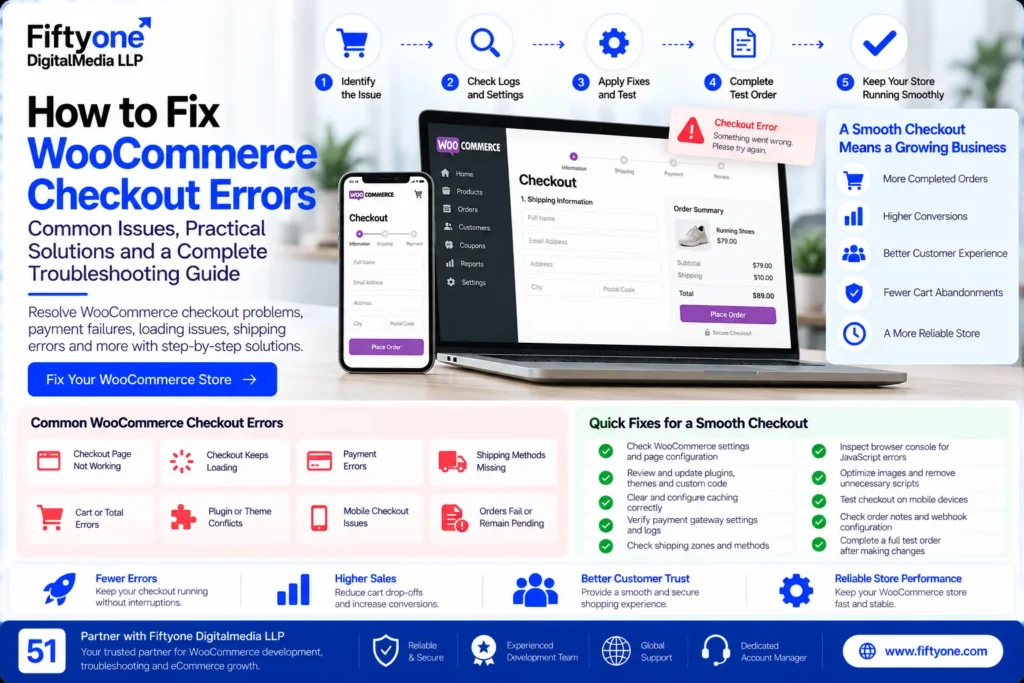
If you are wondering how to fix WooCommerce checkout errors, start by identifying exactly where the checkout process fails. Avoid disabling multiple plugins or changing payment settings without evidence. A structured troubleshooting process makes it easier to isolate the cause while protecting existing orders and customer transactions.
This guide explains common WooCommerce checkout problems, practical troubleshooting steps, and when professional development support may be necessary.
1. WooCommerce Checkout Page Is Not Working
Sometimes the checkout page displays incorrectly, fails to load, or shows an error instead of the order form. This can happen after a plugin update, theme modification, checkout customization, or server configuration change.
How to fix it
First, open the checkout page in a private browser window and test it with a product in your cart. Check whether the issue occurs consistently and whether it affects all customers or only certain devices.
Next, review the following:
- Confirm that the correct checkout page is assigned under WooCommerce settings.
- Check WooCommerce system status for configuration warnings.
- Update outdated WooCommerce extensions and themes after confirming compatibility.
- Review recent changes to checkout fields, page builders, and custom code.
- Check browser console errors if the checkout layout or functionality is broken.
If the issue began immediately after a specific update, investigate that change first. Testing on a staging site is safer than experimenting on a live store that is accepting orders.
2. WooCommerce Checkout Keeps Loading
An endless loading spinner is a common checkout problem. The order review section may never appear, payment options may remain unavailable, or the Place Order process may not complete.
WooCommerce checkout relies on browser scripts and requests that update order totals, shipping methods, and payment information. If those requests fail, the page may stop responding.
How to fix it
Check the browser console. Open your browser’s developer tools and inspect the Console tab for JavaScript errors. The Network tab can help identify failed checkout or AJAX requests.
Review caching settings. Checkout pages contain customer-specific information and should not be served as ordinary cached pages. Review your caching plugin, server cache, and CDN configuration to ensure checkout requests are handled correctly.
Check website URLs. In WordPress, open Settings → General and verify that the WordPress Address and Site Address are configured consistently. Mismatched URLs can interfere with checkout requests.
Investigate plugin conflicts. If the problem continues, test the store on staging with WooCommerce, the active payment gateway, and only the essential dependencies enabled. Restore other extensions one at a time to identify the conflict.
WooCommerce provides a dedicated guide for troubleshooting an endless checkout loading spinner.
3. WooCommerce Payment Errors
A customer may fill in every checkout field correctly but still receive a payment failure. Possible causes include declined cards, incorrect gateway settings, expired credentials, unsupported currencies, authentication problems, or temporary payment provider disruptions.
The error message alone may not identify the exact cause.
How to fix payment failures
Start by opening WooCommerce → Orders and checking the affected order’s status and order notes. These may contain a gateway response, transaction reference, or explanation for the failure.
Then:
- Confirm that the payment gateway is enabled and configured correctly.
- Verify API credentials using the gateway’s official instructions.
- Check whether the payment method supports the store’s currency and country.
- Review payment gateway logs for errors around the transaction time.
- Confirm that required webhook or callback settings are working.
- Test the payment flow in the gateway’s sandbox or test mode where available.
For example, Stripe payment fields that fail to load may indicate a JavaScript conflict or compatibility issue rather than an incorrect card. WooCommerce documents these scenarios in its Stripe checkout troubleshooting guide.
Important: If a customer reports that payment failed, verify the transaction in the payment provider’s dashboard before asking them to retry. A delayed response can leave a transaction pending even when the customer is unsure whether money was charged. This helps prevent duplicate payments.
4. Shipping Methods Are Missing at Checkout
Customers may be unable to proceed because no shipping option appears after they enter their address. This can happen when shipping zones, shipping methods, product weights, or destination settings do not match the order.
How to fix it
Open WooCommerce → Settings → Shipping and review the shipping zones configured for your target countries and regions.
Check that:
- The customer’s shipping address matches an active shipping zone.
- At least one valid shipping method is enabled for that zone.
- Flat-rate costs and free-shipping conditions are configured correctly.
- Product dimensions and weights are accurate where required.
- Shipping restrictions do not exclude the customer’s destination.
Test with addresses from the countries you serve. If your store targets customers in the USA, UK, Canada, or Australia, verify that the relevant shipping rules work for those markets.
If shipping rates depend on an external carrier API, investigate the carrier integration and its logs as well.
5. WooCommerce Checkout Shows a Cart or Total Error
Sometimes customers see an unexpected total, a coupon error, or a message asking them to review their order before proceeding.
These issues may involve tax configuration, shipping calculations, coupon restrictions, currency conversion, dynamic pricing, or product availability.
How to fix it
Check the order’s product prices, taxes, shipping charges, and discounts. Then review the relevant WooCommerce settings and extensions.
For coupon issues, verify the expiry date, minimum spend, product restrictions, and whether the coupon can be combined with other discounts.
For unexpected total changes, investigate dynamic pricing rules, scheduled sales, currency-switching tools, and extensions that modify cart totals. Refresh the checkout page and repeat the test after identifying the likely cause.
Avoid manually changing order totals or disabling tax calculations simply to remove an error. The displayed amount must match the store’s pricing rules and the amount the customer authorizes.
6. Plugin or Theme Conflicts
WooCommerce stores often use extensions for payments, shipping, subscriptions, discounts, checkout fields, and marketing integrations. A conflict between two extensions—or between an extension and the active theme—can prevent checkout from working properly.
Symptoms include missing payment methods, broken buttons, failed redirects, and checkout fields that stop responding.
How to identify the conflict
- Record the exact error and when it occurs.
- Back up the website and create a staging environment.
- Temporarily disable nonessential extensions in staging.
- Test the checkout with WooCommerce and the required payment gateway enabled.
- Reactivate extensions individually, testing checkout after each change.
- If necessary, test with a compatible default theme.
This process helps identify the source without unnecessarily removing functionality from the live store.
Do not deactivate plugins randomly on a production ecommerce site. Changes to payment, shipping, or order-processing extensions can affect real transactions.
7. Checkout Errors on Mobile Devices
A checkout page may work on desktop but fail on a mobile device because of responsive layout problems, JavaScript errors, browser-specific behavior, or payment fields that do not display correctly.
Mobile shoppers may also encounter buttons hidden behind popups, fields that are difficult to use, or unexpected page movement.
How to fix mobile checkout issues
Test the complete shopping journey on both Android and iPhone devices. Include product selection, cart updates, address entry, shipping selection, payment, and the confirmation page.
Review the following:
- Ensure form fields and payment options fit smaller screens.
- Check that the Place Order button remains visible and usable.
- Remove unnecessary popups that interfere with checkout.
- Verify that the theme and payment gateway support the current mobile browsers.
- Test address autocomplete, validation messages, and express payment buttons.
- Check for JavaScript errors that occur only on mobile.
A mobile checkout should be tested as a complete transaction, not judged by how the page looks in a screenshot.
8. Orders Fail or Remain Pending After Payment
An order may remain pending even after a customer attempts to pay. In other cases, a payment provider may confirm the transaction while WooCommerce does not update the order as expected.
Possible causes include delayed payment notifications, webhook failures, gateway timeouts, or an interrupted checkout process.
How to investigate
Open WooCommerce → Orders and review the order notes. Then compare the order with the corresponding transaction in your payment gateway dashboard.
Check the payment provider’s webhook or notification configuration if the transaction succeeded but the order status did not update. Review gateway logs and recent changes to plugins, payment settings, and server configuration.
Do not manually mark an order as paid until you have verified the transaction. If a payment was authorized but not captured, follow the payment provider’s process to complete or cancel it appropriately.
WooCommerce explains these scenarios in its order troubleshooting documentation.
WooCommerce Checkout Troubleshooting Checklist
Use this checklist when diagnosing a checkout problem:
- Reproduce the error and record the exact message.
- Check the affected order and its notes, if an order was created.
- Verify the payment transaction before retrying a potentially charged order.
- Review WooCommerce system status and gateway logs.
- Check browser console errors and failed network requests.
- Verify shipping zones, payment settings, and checkout page configuration.
- Investigate recent plugin, theme, and custom-code changes.
- Test fixes on staging before applying them to the live store.
- Complete a test order on desktop and mobile.
- Confirm that payment, order status, inventory, and confirmation emails work correctly.
Once the cause is identified, document the fix and monitor checkout performance to catch recurring issues.
When to Hire a WooCommerce Developer
Some checkout problems can be resolved through configuration, but persistent failures may require technical investigation.
Consider professional support when payment fields stop loading, checkout requests repeatedly fail, custom checkout code breaks after an update, shipping integrations return errors, or orders and payment statuses become inconsistent.
A good technical investigation should identify the underlying cause, explain the recommended fix, and test the complete purchase flow. It should also account for payment security, order integrity, and compatibility with the store’s existing extensions.
For businesses that depend on ecommerce revenue, reliable checkout functionality is part of maintaining a dependable online store—not simply a design improvement.
How Fiftyone Digitalmedia LLP Can Help
Fiftyone Digitalmedia LLP provides website development and technical support for businesses and agencies. For WooCommerce stores, relevant support may include troubleshooting checkout functionality, reviewing theme and plugin conflicts, improving responsive layouts, and investigating payment or shipping integrations.
The appropriate solution depends on the specific error and the store’s configuration. Some issues require a settings correction, while others involve custom code, server behavior, or third-party integrations.
Businesses can explore the 51Digitalmedia blog archive for additional website development and maintenance resources.
Before making changes to a live store, establish the affected functionality, testing requirements, and rollback plan. This helps protect orders and keeps essential shopping features working during troubleshooting.
Frequently Asked Questions
Why is my WooCommerce checkout not working?
Common causes include payment gateway errors, plugin conflicts, JavaScript failures, incorrect checkout settings, caching problems, and server issues. The exact cause should be identified from the error message, order notes, and relevant logs.
Why does WooCommerce keep loading at checkout?
The checkout may be waiting for an AJAX request or script that never completes. Check browser console errors, failed network requests, caching rules, website URLs, and plugin compatibility.
How do I fix WooCommerce payment failures?
Check the order notes and payment provider dashboard, verify gateway configuration, and review payment logs. Use the gateway’s test mode where available, and confirm that no charge was made before asking a customer to retry.
Can a plugin break WooCommerce checkout?
Yes. An incompatible plugin or theme can interfere with payment fields, shipping calculations, checkout validation, or order submission. Test suspected conflicts on a staging site before changing the live store.
Conclusion
WooCommerce checkout errors can arise from payment configuration, plugin conflicts, shipping rules, browser scripts, custom code, or server issues. The most effective solution is to reproduce the problem, identify where the process fails, and test a targeted fix rather than changing multiple settings at once.
Start with the order notes, payment gateway logs, browser console, and WooCommerce system status. Then verify the complete checkout process across devices before returning the store to normal operation.
For ecommerce businesses serving international customers, a reliable checkout helps maintain trust and makes it easier for shoppers to complete their purchases. If the problem persists, professional WooCommerce development support can help identify the underlying cause and restore the buying journey.
Need help with a WooCommerce checkout issue? Contact Fiftyone Digitalmedia LLP to discuss your store’s technical requirements and the next steps for troubleshooting.