How to Fix a Slow WordPress Website Without Changing Hosting

Introduction
A slow WordPress website can frustrate visitors, reduce engagement, and make it harder for users to complete important actions such as submitting a form, exploring services, or purchasing a product. However, slow performance does not always mean you need a new hosting provider.
In many cases, the problem comes from large images, unnecessary plugins, inefficient database queries, excessive JavaScript, or incorrect caching settings. These issues can often be improved without migrating your website or increasing hosting costs.
Before spending money on a new hosting plan, identify what is slowing down your website and address the most significant problems first. This guide explains how to fix a slow WordPress website without changing hosting while preserving its design and functionality.
1. Test Your WordPress Website Speed
Before making any changes, measure your website’s current performance. Testing helps you understand whether the delay comes from server response, images, scripts, stylesheets, or other resources.
Use tools such as Google PageSpeed Insights, GTmetrix, or Chrome Lighthouse to evaluate important pages.
Test your homepage, service pages, blog posts, and product pages separately. A website may perform well on the homepage but load slowly on pages containing large images, complex layouts, or third-party integrations.
Pay attention to these metrics:
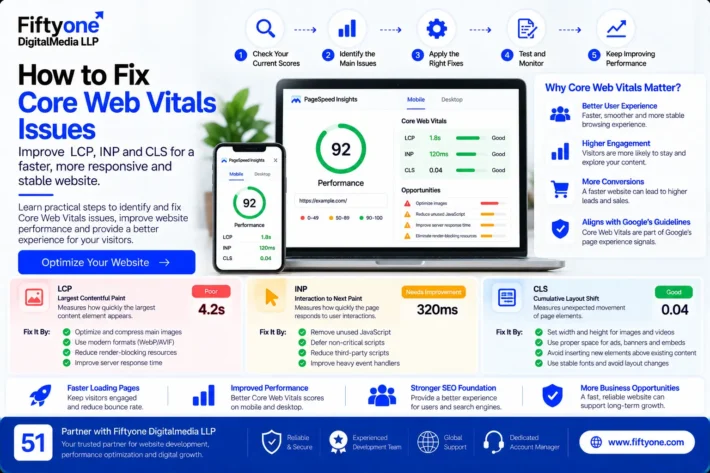
- Largest Contentful Paint (LCP): Measures how quickly the main visible content appears.
- Interaction to Next Paint (INP): Measures how quickly the page responds to user interactions.
- Cumulative Layout Shift (CLS): Measures unexpected movement of page elements.
- Time to First Byte (TTFB): Helps assess how quickly the server begins responding.
Record the results before making changes. This gives you a baseline for comparing performance improvements later.
2. Optimize Images Without Losing Quality
Large images are a common reason for slow WordPress pages. Uploading oversized images can increase page weight and make content slower to load, particularly for mobile visitors and users on slower connections.
You can improve image performance without changing your hosting provider.
Resize images to the required dimensions
Avoid uploading a very large image when the design only displays it inside a smaller content area. Resize images according to their actual display dimensions before uploading them.
Compress image files
Use an image optimization tool or plugin to reduce file sizes while maintaining acceptable visual quality. WebP and AVIF formats can also help reduce image weight when supported by your website and workflow.
Use lazy loading appropriately
Images below the visible area can usually load as visitors scroll down. However, avoid lazy-loading the main hero image if it is the largest visible element and contributes to LCP.
Remove unnecessary image variations
Review your media library and image settings if your website generates multiple sizes that are not being used. Make changes carefully because themes and plugins may depend on specific image sizes.
Optimizing images can reduce the amount of data browsers need to download, improving the experience without requiring a hosting upgrade.
3. Configure WordPress Caching Correctly
Caching reduces repeated processing by storing reusable page output or resources. When configured properly, it can make WordPress pages load faster and reduce repeated work for the server.
Depending on your setup, you may use a caching plugin such as WP Rocket, LiteSpeed Cache, or another compatible solution.
Enable page caching
Page caching can serve a stored version of suitable pages instead of generating every page from scratch for each request.
Check whether caching is enabled and whether the cache is being cleared or bypassed unnecessarily. Some hosting environments also provide server-level caching, so verify your existing setup before installing another caching system.
Enable browser caching
Browser caching allows visitors’ browsers to reuse eligible static resources, such as images, stylesheets, and JavaScript files, rather than downloading them again on every visit.
Avoid duplicate optimization plugins
Installing several plugins that perform the same caching or minification tasks can cause conflicts and unpredictable results.
Choose a compatible configuration, change one setting at a time, and test important pages after each change. For ecommerce sites, make sure cart, checkout, account, and other personalized pages are handled correctly.
4. Remove Unnecessary WordPress Plugins
Plugins add useful features, but some also load scripts, stylesheets, database queries, and background processes that affect performance.
The solution is not to remove every plugin or aim for an arbitrary plugin count. Instead, identify which plugins create unnecessary work.
Review your installed plugins and look for:
- Plugins that are inactive or no longer required.
- Multiple plugins performing the same function.
- Outdated extensions that are no longer maintained.
- Plugins loading resources across pages where their features are not needed.
- Features that add little value but increase page complexity.
Deactivate and remove plugins only after checking whether your theme, forms, integrations, or other features depend on them.
For more complex websites, use a staging environment to test plugin changes before applying them to the live site. This reduces the risk of breaking forms, navigation, or ecommerce functionality.
5. Clean and Optimize the WordPress Database
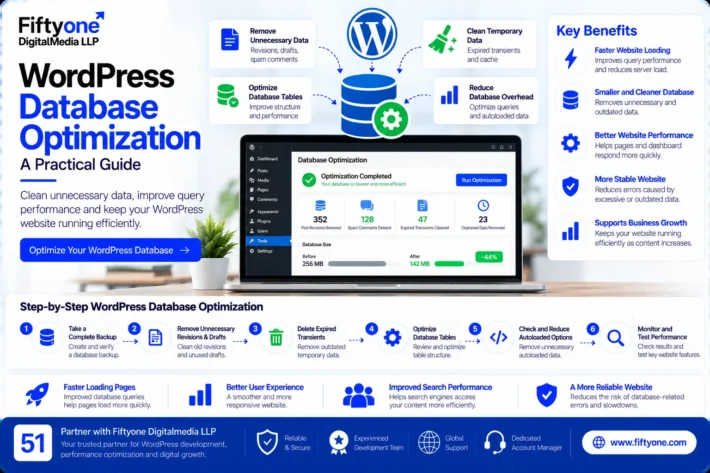
WordPress stores posts, pages, settings, comments, and other information in its database. Over time, unnecessary revisions, expired transients, spam comments, and outdated plugin data may accumulate.
Database cleanup can help reduce unnecessary storage and maintenance overhead, although it will not automatically solve every performance problem.
Start by reviewing:
- Old post revisions that are no longer needed.
- Spam and trashed comments.
- Expired transient data.
- Unused tables left behind by removed plugins, where safe to identify.
- Plugins or themes that create excessive database queries.
Before performing database cleanup, create a complete backup. Some cleanup operations are difficult to reverse, especially when plugin data is involved.
You can also review your existing database optimization tools and settings. Avoid running multiple database cleanup plugins simultaneously because overlapping operations can create unnecessary risk.
6. Reduce Unnecessary CSS and JavaScript
A WordPress page may load more code than it needs. Themes, page builders, animations, sliders, tracking tools, chat widgets, and third-party integrations can all add CSS and JavaScript files.
When these resources are large or block important rendering work, the page may take longer to display or respond.
Consider these improvements:
- Remove unused animations and heavy visual effects.
- Disable scripts for features that are not used on a particular page, where safely possible.
- Minify CSS and JavaScript when compatible with your setup.
- Defer or delay non-critical scripts after testing.
- Reduce unnecessary third-party widgets and tracking scripts.
- Avoid loading multiple font families and font weights without a clear need.
Do not apply every optimization setting at once. Aggressive JavaScript delay or CSS optimization can break menus, forms, sliders, and other interactive elements.
Make one change at a time and test the website in desktop and mobile browsers.
7. Optimize Your WordPress Theme and Page Builder
A visually attractive website can still be inefficient if its pages contain too many sections, widgets, animations, or nested layout elements.
If you use Elementor, WPBakery, or another page builder, review the structure of your most important pages.
Simplify sections that do not contribute to the visitor’s goal. Remove redundant widgets, reduce unnecessary animations, and avoid loading large background videos where a lightweight image would work.
Also check whether your theme loads resources that are not needed on every page. Some websites benefit from a carefully optimized template rather than a complete redesign.
You do not necessarily need to change your theme. Start by simplifying the existing design and measuring the results before considering a larger rebuild.
8. Use a CDN for International Visitors
If your business serves visitors in the USA, UK, Canada, Australia, or other international markets, a content delivery network (CDN) may help deliver static assets from servers closer to users.
A CDN can cache eligible files such as images, stylesheets, and JavaScript resources. This may reduce delivery time for visitors located far from your origin server.
Before enabling a CDN, review your current caching configuration and make sure it does not conflict with existing services. Test image delivery, fonts, redirects, and any security rules after setup.
A CDN is not a substitute for optimizing your website itself. Oversized images, unnecessary scripts, and inefficient database queries can remain problems even when static files are delivered through a CDN.
9. Retest Your Website After Optimization
After implementing changes, run the same performance tests you used at the beginning. Compare the results instead of relying only on whether the website feels faster.
Check these areas:
- Mobile and desktop loading performance.
- LCP, INP, and CLS where data is available.
- Image loading and page layout stability.
- Navigation menus and interactive elements.
- Forms, search, and contact buttons.
- Cart and checkout functionality on ecommerce websites.
Clear the relevant caches before testing, but remember that test results may vary because of network conditions, browser settings, and server load.
Laboratory scores can improve before real-user metrics change. Field data reflects visitors’ experiences over time, so allow sufficient time for those results to update.
If performance remains poor, investigate the remaining bottleneck rather than repeatedly installing new plugins or changing random settings.
When Should You Consider Changing Hosting?
Changing hosting should not be the first response to every slow WordPress website. However, optimization has limits.
Consider a hosting review if your website continues to show consistently slow server response, frequent resource-limit errors, CPU or memory constraints, or performance problems during traffic spikes after you have addressed major website-level issues.
For some websites, the current hosting plan may genuinely lack the resources required. In that situation, upgrading or migrating may be appropriate.
The key is to use performance evidence to make the decision. A well-optimized website on suitable hosting is a better starting point than moving an inefficient website to a more expensive server without diagnosing the underlying issues.
Why Choose Fiftyone Digitalmedia LLP?
Fiftyone Digitalmedia LLP helps businesses improve website performance through technical reviews, WordPress optimization, and website development support.
A structured performance review can identify oversized media, inefficient page layouts, unnecessary scripts, caching problems, and database concerns. Fixes should be prioritized according to their impact, implementation risk, and the website’s business goals.
For businesses that depend on lead generation, ecommerce, or international visitors, the objective is not simply to achieve a high testing score. It is to create a website that loads efficiently, responds reliably, and continues to support essential functionality.
Explore our related guide on How to Fix Core Web Vitals Issues for more information about loading performance, responsiveness, and visual stability.
Frequently Asked Questions
Can I speed up WordPress without changing hosting?
Yes. Image compression, caching configuration, plugin cleanup, database maintenance, and reducing unnecessary CSS and JavaScript can improve performance without a hosting change. The results depend on the actual cause of the slowdown.
Which plugin is best for WordPress speed optimization?
There is no single best plugin for every website. Choose a tool that is compatible with your hosting environment and existing caching setup. Avoid running multiple plugins that perform the same optimization tasks.
Does clearing the WordPress cache make a website faster?
Clearing the cache can help when stored files are outdated or changes are not appearing correctly. However, clearing it repeatedly does not itself improve performance. A correctly configured cache is generally more useful.
Can too many images slow down WordPress?
Yes. Large image files can increase page size and download time. Resize and compress images, use modern formats where appropriate, and lazy-load images that appear below the initial visible area.
How long does WordPress speed optimization take?
The time required depends on the number and complexity of performance issues. Basic image and caching improvements may be relatively quick, while database queries, theme code, and JavaScript problems may require more detailed investigation.
Conclusion
You do not always need to change hosting to fix a slow WordPress website. Many performance problems can be addressed by optimizing images, configuring caching, removing unnecessary plugins, cleaning the database, and reducing excess code.
Start with performance testing, fix the biggest bottlenecks first, and verify every change. If the website remains slow after these improvements, investigate server response and resource limits before deciding whether a hosting change is necessary.
A measured optimization process can improve website speed while protecting your existing design, functionality, and budget.