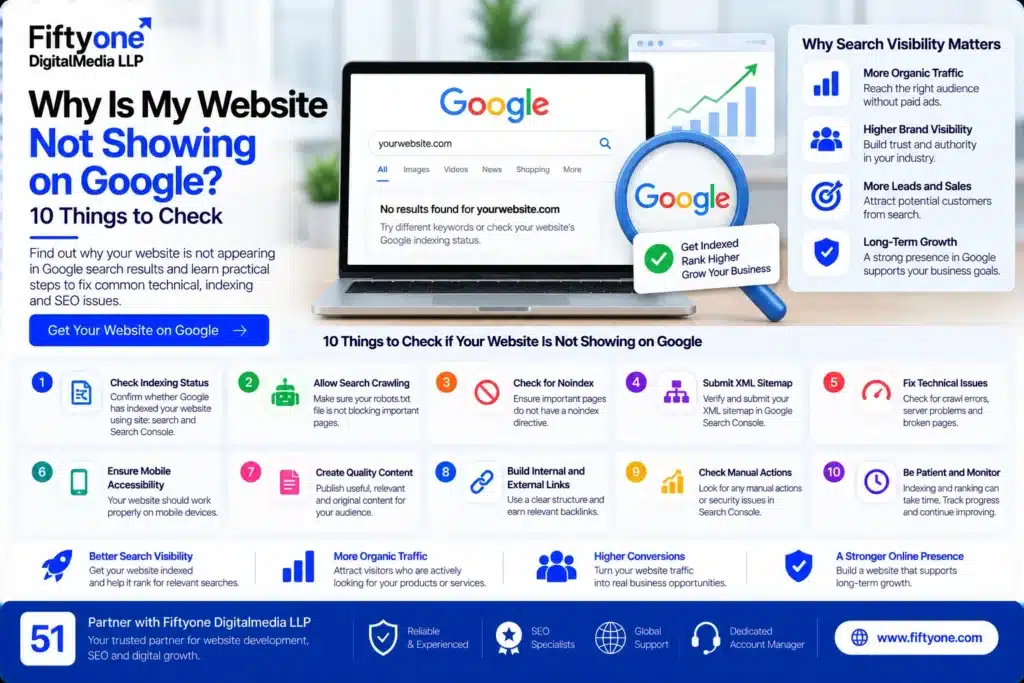
Why Is My Website Not Showing on Google? 10 Things to Check

Introduction
You have launched a website, published useful content, and optimized your pages, but your website still does not appear in Google search results. For businesses targeting customers in the United States, the United Kingdom, Canada, Australia, or other international markets, this can limit visibility and reduce opportunities to generate organic traffic.
The first step is to identify what “not showing on Google” actually means. Your website may not be indexed, Google may be unable to crawl important pages, or your pages may be indexed but ranking too low to attract visitors. Each situation requires a different solution.
A website does not automatically rank simply because it is published. Google must discover the page, crawl it, evaluate its content, and decide whether it should appear for relevant searches.
In this guide, Fiftyone Digitalmedia LLP explains 10 practical checks to help you identify common search visibility problems, troubleshoot technical SEO issues, and improve your website’s chances of appearing in relevant Google search results.
1. Check Whether Google Has Indexed Your Website
Before changing your website, confirm whether Google has indexed it. Indexing means Google has stored a page in its search index, making it eligible to appear in search results.
Open Google and search for:
site:yourdomain.com
Replace yourdomain.com with your actual domain.
For example, searching site:example.com may display pages from that website that Google has indexed.
If results appear, Google has indexed at least some pages from your website. However, this search is not a complete or perfectly reliable inventory of indexed URLs. If no results appear, investigate further using Google Search Console.
How to check indexing in Google Search Console
- Open Google Search Console and select your website property.
- Navigate to the URL Inspection tool.
- Enter the complete URL of the page you want to check.
- Review the indexing status and the information about Google’s last crawl.
- If the page is not indexed, investigate the reported reason before making changes.
If a newly published page is missing, do not immediately assume something is broken. Google may need time to discover and process it.
What to do next: Determine whether the issue affects the entire website or only specific pages. This distinction will help you narrow down the cause instead of making unnecessary site-wide changes.
2. Make Sure Your Website Allows Search Engine Crawling
Google uses automated crawlers, including Googlebot, to discover and access website pages. If your website prevents Googlebot from accessing important content, those pages may not be crawled properly.
One place to check is your website’s robots.txt file, which usually exists at:
https://yourdomain.com/robots.txt
Review the file for rules that might unintentionally block important sections of your website.
For example, a rule such as Disallow: / under the Googlebot user-agent group can prevent Googlebot from crawling the entire site.
However, not every disallow rule is a problem. Some directories, such as private administrative areas, may appropriately be restricted.
What should you check?
- Confirm that important pages and resources are not unintentionally blocked.
- Review any recent changes to your robots.txt file.
- Check whether a website migration or staging configuration introduced restrictive rules.
- Use URL Inspection to test whether Google can access important pages.
Remember that robots.txt controls crawling, not guaranteed removal from Google’s index. A blocked URL may still appear in search results under certain circumstances.
Important: Do not remove every robots.txt restriction without understanding its purpose. Change only the rules that are incorrectly blocking content you want Google to access.
3. Check for a Noindex Directive
One of the most direct reasons a page may not appear in Google search results is an unintended noindex directive.
A noindex directive tells search engines that a page should not be included in their search index. It can be useful for private, internal, or otherwise unsuitable pages, but it creates problems when applied to important landing pages or blog posts.
Where can noindex problems occur?
They may appear after:
- Building a website on a staging environment.
- Migrating a website to a new domain.
- Changing WordPress SEO plugin settings.
- Updating page templates or technical configurations.
- Accidentally applying indexing restrictions to an entire website.
Open the page source or inspect its HTTP response headers. Look for a robots meta tag containing noindex or an X-Robots-Tag response header with the same directive.
In WordPress, review the page-level settings in your SEO plugin and check whether search engine visibility has been disabled in the website settings.
If the page should appear in search results, remove the unintended directive and verify the updated page with URL Inspection.
Do not remove noindex from pages that are intentionally excluded. The objective is to make important, publicly accessible content indexable.
4. Submit and Verify Your XML Sitemap
An XML sitemap helps search engines discover important URLs on your website. It is particularly useful when a website has many pages, publishes content regularly, or has a complex structure.
However, submitting a sitemap does not guarantee that Google will crawl or index every URL included in it.
How to check your sitemap
- Open your sitemap URL, commonly
/sitemap.xmlor an SEO plugin-generated sitemap index. - Confirm that it loads successfully.
- Check that it includes the canonical URLs of important pages.
- Remove URLs that should not be indexed, such as redirected or intentionally excluded pages.
- Open Google Search Console and navigate to the Sitemaps report.
- Submit the correct sitemap URL or review the status of the existing submission.
If your website uses WordPress, an SEO plugin may automatically generate and update the sitemap whenever you publish or modify content.
Common sitemap mistakes
- Including URLs that redirect to other pages.
- Listing pages blocked by noindex directives.
- Submitting an incorrect sitemap URL.
- Leaving outdated URLs in the sitemap after a website migration.
- Assuming that a successful sitemap submission guarantees indexing.
Keep the sitemap accurate and focus on helping Google discover the pages that matter to your business.
5. Improve Internal Linking to Important Pages
Google discovers many pages by following links from other pages. If an important service page or blog post has no meaningful internal links pointing to it, search engines may have more difficulty discovering it and understanding its relationship to the rest of your website.
This is particularly relevant for large business websites, ecommerce stores, and content-heavy websites with multiple categories.
How to improve internal linking
Start by identifying your most important pages, such as service pages, product categories, and high-value blog posts.
Then:
- Link to relevant pages from your main navigation where appropriate.
- Add contextual links from related articles.
- Use descriptive anchor text that explains what the destination page covers.
- Ensure important pages can be reached through ordinary, crawlable links.
- Remove broken internal links and unnecessary redirect chains.
For example, a business publishing technical SEO content can link to its website performance resources when discussing page experience or technical website issues.
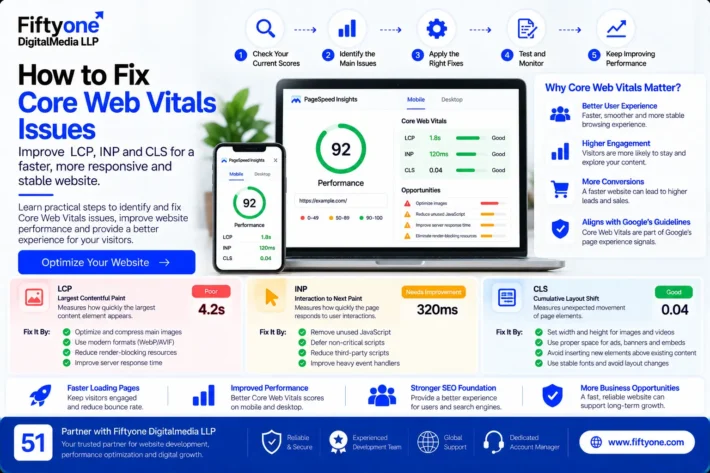
Your content about how to fix Core Web Vitals issues can support readers who need to investigate website performance problems alongside their search visibility concerns.
Internal linking is not a guarantee of indexing or higher rankings. Its purpose is to improve discovery, navigation, and the contextual relationships between pages.
6. Check Whether Your Website Content Provides Enough Value
A page can be crawled successfully and still remain outside Google’s index. This can happen when Google determines that the page does not provide enough unique value or does not offer a useful result for searchers.
Publishing large volumes of similar articles does not automatically improve organic visibility.
For example, a website with multiple pages repeating nearly identical information about SEO services, website development, or digital marketing may struggle to establish a distinct purpose for each URL.
What makes content more useful?
Review each affected page and ask:
- Does it answer the searcher’s main question directly?
- Does it provide information beyond generic explanations?
- Are the examples accurate and relevant to the intended audience?
- Does it offer practical steps, original observations, screenshots, or useful comparisons?
- Does it overlap heavily with other pages on the same website?
- Does the content clearly match the page title and search intent?
For an international audience, avoid relying on generic claims about global markets. Include relevant examples, regional considerations, and pricing information only when it can be supported accurately.
If two articles serve essentially the same purpose, consider consolidating them or differentiating their intent. Do not merge pages simply because they share a keyword.
Fiftyone Digitalmedia LLP can use this same principle when reviewing content-heavy business websites: every important page should have a clear purpose and deliver a useful answer.
7. Review Canonical Tags and Duplicate URLs
A canonical tag helps Google understand which URL should be treated as the preferred version when multiple URLs contain identical or substantially similar content.
For example, a website may expose the same page through multiple URL variations, or an ecommerce store may generate different URLs through product filters and parameters.
Without clear URL management, Google may select a different canonical URL from the one you intended.
How to investigate canonical issues
Use URL Inspection in Google Search Console and review the user-declared canonical and Google-selected canonical when that information is available.
Check whether:
- Important pages point to the correct canonical URL.
- Canonical tags reference URLs that return successful responses.
- Redirected URLs are being used as canonical destinations.
- HTTP and HTTPS versions or www and non-www versions are handled consistently.
- Similar pages have a legitimate reason to exist separately.
If Google selects another canonical URL, investigate why before changing anything. Google may choose a different URL when it considers another version more appropriate.
For pages that should remain independently indexable, use consistent internal links, correct canonical declarations, and distinct content where necessary.
Do not force every page to use the homepage as its canonical. Each page should point to the appropriate preferred URL for its content.
8. Check for Server Errors, Redirects, and Website Availability Problems
Googlebot must be able to access your website reliably. Server failures, long redirect chains, redirect loops, and persistent timeouts can prevent Google from crawling important pages.
A website may work normally for you while Googlebot encounters intermittent errors.
Technical issues to investigate
Server errors (5xx): The server failed to process a request. Check hosting logs, server resource usage, and application errors.
Redirect loops: A URL redirects repeatedly without reaching a final destination. Review redirect rules and plugin configurations.
Redirect chains: A URL passes through several redirects before reaching the final page. Update internal links and simplify unnecessary redirect sequences.
Not found errors (404): A page no longer exists. Restore it if appropriate, redirect it to a genuinely relevant replacement when one exists, or allow the correct 404 response if the content has been permanently removed.
Access restrictions: Firewalls, security plugins, authentication requirements, or incorrect server settings may prevent Googlebot from reaching public pages.
How to diagnose the problem
Review the Page indexing report and URL Inspection results in Google Search Console. If problems persist, investigate server logs and hosting availability.
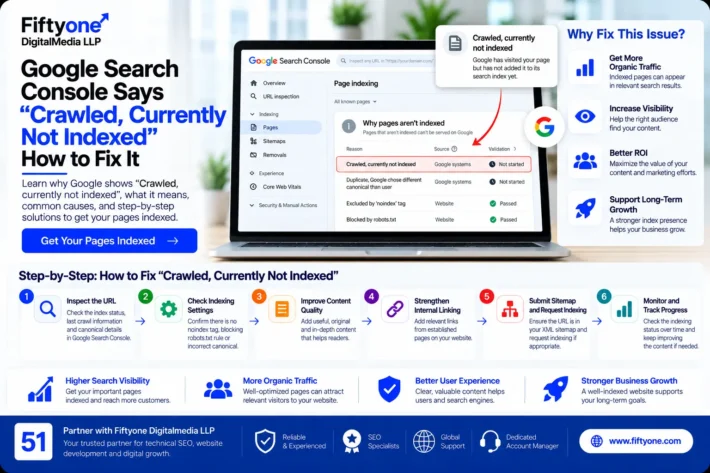
If the affected website runs WordPress, examine whether recent plugin or theme changes introduced errors. Your WordPress database optimization guide provides additional context on diagnosing database-related performance bottlenecks, although database optimization alone will not resolve every crawling issue.
Fix the underlying cause and verify that important URLs return the expected response before requesting another crawl.
9. Check Whether Your Website Was Recently Migrated or Redesigned
Website redesigns and migrations can introduce indexing problems when URLs, redirects, canonical tags, internal links, or indexing settings change unexpectedly.
This is common when businesses move from one CMS to another, change domains, restructure service pages, or replace website themes.
Migration checks to perform
- Confirm that the new URLs return the correct status codes.
- Map old URLs to their appropriate new destinations.
- Implement permanent redirects for pages that have genuinely moved.
- Update internal links to point directly to the new URLs.
- Review canonical tags and sitemap entries.
- Confirm that important pages are not accidentally marked noindex.
- Check the Page indexing report for changes after the migration.
- Verify that the new website is accessible to search engine crawlers.
If you changed domains, make sure Google can discover the new URLs and that the redirect strategy is consistent. Follow Google’s official site-move documentation when applicable.
Do not remove the old website or its redirects immediately after migration. Search engines and visitors may continue to use old URLs for some time.
10. Check Google Search Console for Manual Actions and Security Issues
Not every visibility problem is caused by a technical error. A website may also experience search restrictions or security-related problems that require specific investigation.
Google Search Console provides reports for manual actions and security issues.
Manual Actions
A manual action means a human reviewer at Google has determined that a website violates certain spam policies. Depending on the issue, some or all of the website may be affected in Google Search.
Open the Manual Actions report and check whether an issue has been reported. If one exists, read the details, correct the underlying violation, and follow the reconsideration process where applicable.
Security Issues
A compromised website may contain injected spam pages, malicious scripts, harmful downloads, or deceptive redirects.
Open the Security Issues report and investigate any warnings. If the website has been hacked, secure the affected systems, remove malicious content, update vulnerable software, and verify that the site is clean before requesting a review when needed.
For WordPress websites, this WordPress malware removal guide explains additional considerations for identifying and addressing website security problems.
If both reports show no issues, do not assume your website has been penalized. Continue investigating indexing, content quality, technical accessibility, and ranking performance.
What to Do After Fixing the Problem
Once you have identified and corrected the cause, verify the result instead of assuming the issue is resolved.
Use this checklist:
- Confirm that the page loads correctly for visitors.
- Verify that the page can be crawled and is not unintentionally blocked.
- Check the canonical URL and indexing directives.
- Review internal links and sitemap entries.
- Run URL Inspection and use the live test where appropriate.
- Request indexing for important updated URLs when appropriate.
- Monitor the Page indexing report and search performance over time.
Google does not guarantee that a submitted URL will be indexed or that it will rank for a particular keyword. Crawling, indexing, and ranking are separate processes, and improvements may take time to become visible.
For more guidance, consult Google’s official documentation on why a page may be missing from Search and the Page indexing report.
How Fiftyone Digitalmedia LLP Can Help
When a website does not appear in Google search results, the right solution depends on the underlying issue. A missing page may require an indexing correction, while a wider visibility problem may involve content quality, internal linking, site architecture, or technical SEO.
Fiftyone Digitalmedia LLP provides website development and digital marketing services for businesses and agencies, including clients serving international markets. A structured technical review can help identify crawling problems, incorrect indexing settings, broken redirects, canonical inconsistencies, and other issues affecting important website pages.
For businesses targeting the USA, UK, Canada, Australia, and other markets, technical accessibility should be combined with content that matches local search intent and provides a clear reason for users to visit the website.
Rather than applying random SEO changes, begin with evidence from Google Search Console, prioritize the pages that matter most, and measure the results after making targeted corrections.
If your website is struggling with indexing or organic visibility, Fiftyone Digitalmedia LLP can help assess the technical and content-related factors that may be limiting its performance.
Frequently Asked Questions
Why is my website not appearing on Google?
Your website may be new, not indexed, blocked from crawling, marked noindex, affected by canonical issues, or ranking too low to appear prominently. Use Google Search Console to determine which situation applies.
How do I get my website indexed by Google?
Make sure the page is publicly accessible, indexable, linked internally, and included in an appropriate sitemap. Inspect the URL in Google Search Console and request indexing when appropriate. Google does not guarantee indexing.
How long does Google take to index a website?
There is no fixed timeline. It may take days or longer for Google to discover, crawl, and index a page. Requesting indexing does not guarantee immediate processing or inclusion in search results.
Why is my website indexed but not ranking?
Indexing only makes a page eligible to appear in search results. Rankings depend on relevance, content quality, competition, and many other factors. Review query-level performance and compare the page with competing results.
Can a technical SEO audit help my website appear on Google?
Yes, when the problem is caused by technical issues such as crawl blocks, incorrect noindex directives, canonical errors, broken redirects, or server failures. An audit cannot guarantee rankings, but it can identify and prioritize problems that prevent search engines from accessing or understanding important pages.
Conclusion
If your website is not showing on Google, avoid making random changes or publishing more content before identifying the actual problem.
Start by checking indexing status, crawl accessibility, noindex directives, and sitemap configuration. Then review internal links, content quality, canonical tags, server errors, migration settings, and Search Console’s security and manual action reports.
Each issue requires a different response, so use evidence from Google Search Console to prioritize the right fixes.
With a systematic approach, businesses can resolve technical obstacles, improve page discoverability, and build a stronger foundation for organic search visibility. Fiftyone Digitalmedia LLP recommends focusing on the pages that matter most to your business and measuring the impact of every significant change.